Web-Engine Sentry for WordPress
The easy-to-use WordPress plugin that provides quick and simple integration to our privacy-focused service to enhance the security of your site. The plugin works by validating that the user is human.
Read moreSee your site's posts, pages, terms, users and menus as a graph of connected records, then filter it and layout it to explore.
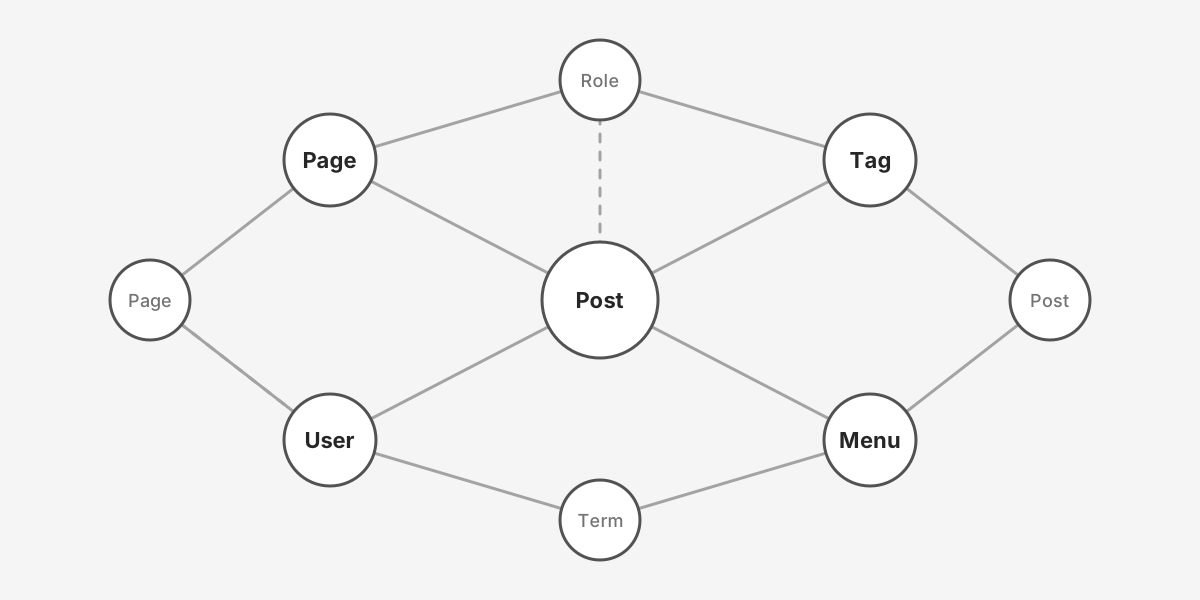
Web-Engine Graph draws your site's content as a graph. Each record is a node, and the lines between them are the connections WordPress already holds: posts, pages and custom post types; categories, tags and other public taxonomies; users and their roles; navigation menus and their items; and the parent and child links between hierarchical pages.
The graph opens on a new admin page, Graph, and is built from your own database each time the page is opened. There is nothing to configure before you see it, and the plugin adds nothing to your site's public pages.
The Graph page is open to Editors and Administrators, that is any user who can edit other people's posts. Connecting the site to the cloud needs an Administrator. On multisite, each site in a network has its own graph and its own connection.
You can explore, filter and arrange the graph without an account. To save a graph and reopen it later, an Administrator connects the site to a Web-Engine cloud account. Connecting is optional and registration is free. Saved graphs belong to the site rather than to one WordPress user, and each graph keeps a history of its saves.
Nothing is sent anywhere until an Administrator connects the site. After that, the plugin contacts the cloud only to save, list or reopen graphs, to open My account, and to say goodbye when it is deleted. A save never contains post content, email addresses or passwords.
The plugin adds no analytics or tracking and loads no scripts, fonts or images from other servers: all of its JavaScript is bundled with the plugin.
Full installation, layout and privacy documentation: https://docs.we360.cloud/graph/wordpress
Looking for our other plugins? See Web-Engine Sentry for WordPress.
The easy-to-use WordPress plugin that provides quick and simple integration to our privacy-focused service to enhance the security of your site. The plugin works by validating that the user is human.
Read moreThe easy-to-use Redmine plugin that provides quick and simple integration to our privacy-focused service to enhance the security of your Redmine. The plugin works by validating that the user is human.
Read more